How to Set Up Philips Hue Smart Lights (The Complete, High‑Value Guide)
✅ Why Philips Hue Is the Gold Standard in Smart Lighting
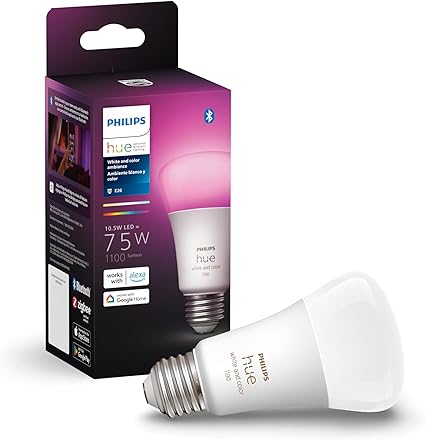
Philips Hue is one of the most reliable and feature‑rich smart lighting ecosystems available today. Unlike budget Wi‑Fi bulbs, Hue uses Zigbee (or Bluetooth) for ultra‑stable performance, low latency, and long‑range connectivity. When paired with the Hue Bridge, you unlock:
• Full‑home automation
• Remote access
• Apple HomeKit support
• Advanced scenes and routines
• Rock‑solid reliability
This guide walks you through the exact setup process, plus expert troubleshooting tips that even Philips support rarely explains.
Steps to configure the Phillips Hue Smart Light
🔧 Step-by-step:
- Screw the Hue bulb into a lamp or ceiling fixture.
- Make sure the physical light switch stays ON — Hue bulbs must always have power.
- If using a lamp with a dimmer, set it to 100% brightness or bypass the dimmer entirely.
✅ Pro Tip:
Hue bulbs behave unpredictably when connected to dimmer switches. If you must use one, replace it with a Hue-compatible smart dimmer.
You’ll need the official app to control your lights and connect them to the Hue Bridge.
📱 Install the app:
- iOS: App Store → Philips Hue
- Android: Google Play → Philips Hue
🔐 Create or log into your Hue account
This enables:
- Cloud sync
- Remote control
- Voice assistant integration
- Firmware updates
Philips Hue works in two modes:
✅ A. Hue Bridge Mode (Best Experience)
This gives you:
- Full automation
- HomeKit support
- Multi-room control
- Remote access
- Zero Wi‑Fi interference
🔧 Setup:
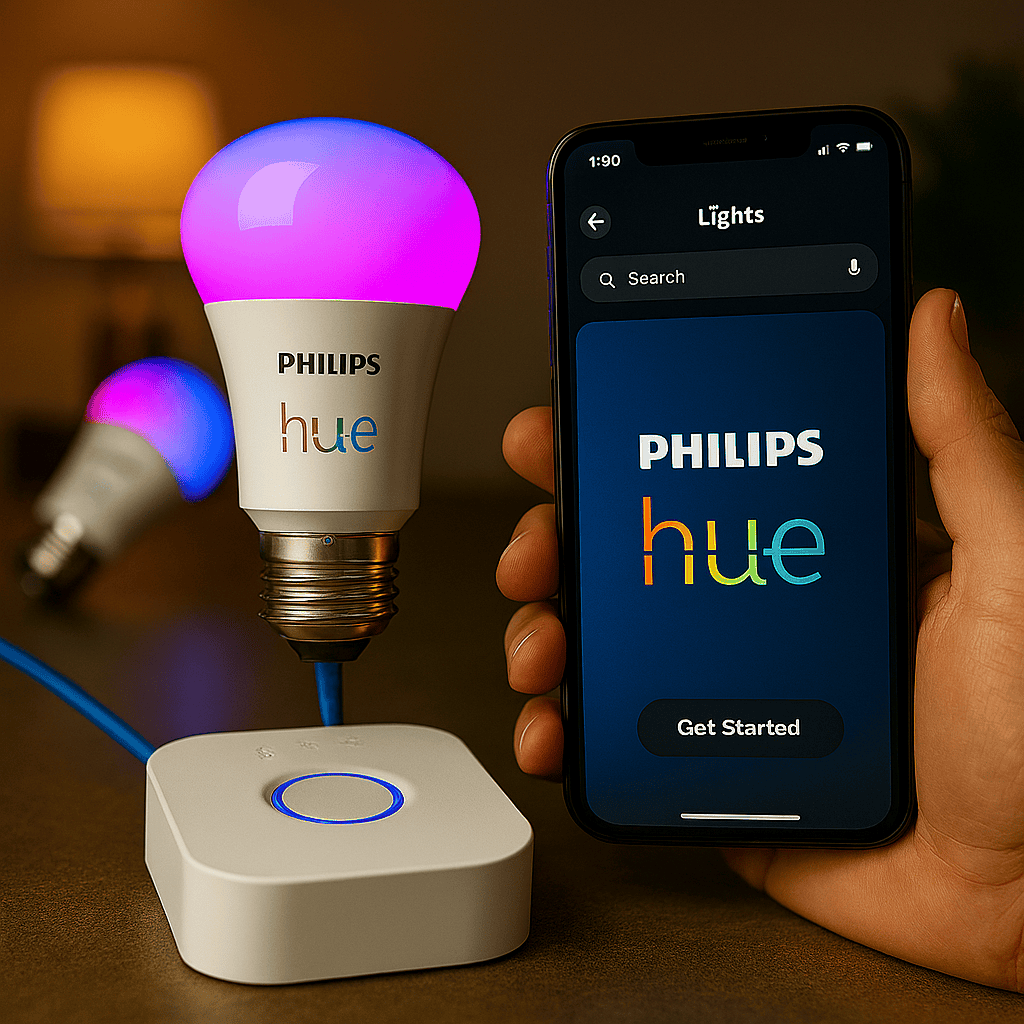
- Plug the Hue Bridge into power.
- Connect it to your router using the included Ethernet cable.
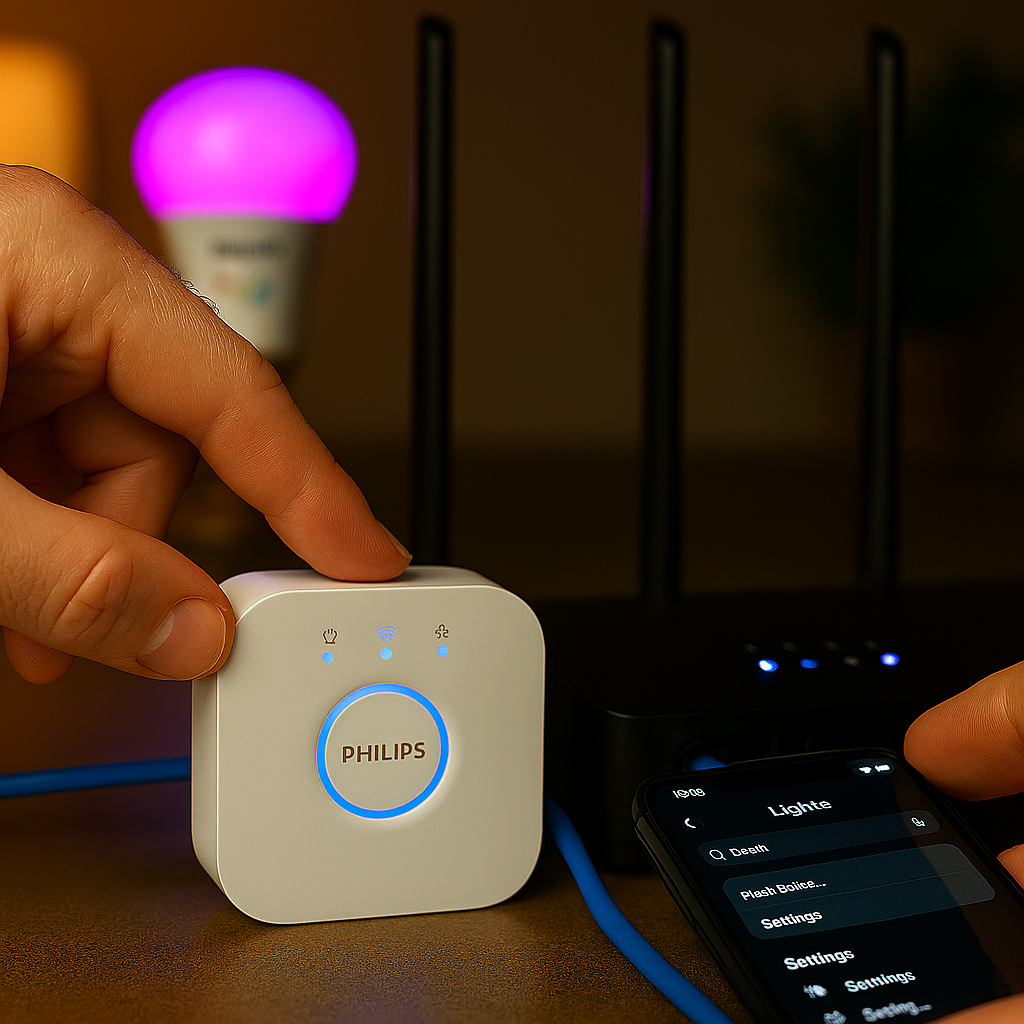
- Wait for all three LEDs to turn solid:
- Power
- Network
- Internet
- Open the Hue app → Settings → Lights → Add Light
- Press the Bridge button when prompted.
✅ B. Bluetooth Mode (No Bridge)
Use this only if you have:
- 1–10 bulbs
- No need for automation
- No need for HomeKit
Open the Hue app → Bluetooth → Add Light
This is where your guide becomes high-value — people constantly search for these fixes.
❗ Problem: Bulb not found
✅ Solution: Reset the bulb
- Toggle the light switch on/off 5–7 times
- The bulb will flash to confirm reset
- Try adding it again in the app
❗ Problem: Bridge not connecting
✅ Check the LEDs:
- Power: solid
- Network: solid
- Internet: solid
If the network light is blinking:
- Try a different Ethernet port
- Reboot your router
- Avoid managed switches that block multicast traffic
❗ Problem: Bulbs won’t connect to Wi‑Fi
Hue bulbs do not connect to Wi‑Fi directly — they connect to the Bridge via Zigbee.
If you’re using Bluetooth bulbs:
- Ensure your phone is on 2.4 GHz Wi‑Fi
- Stand within 10–15 feet of the bulb
❗ Problem: App can’t find the Bridge
✅ Try:
- Rebooting the Bridge
- Rebooting your router
- Ensuring your phone is on the same network
- Disabling VPN or Private Relay
❗ Problem: Firmware update stuck
✅ Fix:
- Move the bulb closer to the Bridge
- Ensure the Bridge is not behind a TV or metal cabinet
- Update one bulb at a time
Once your bulbs are connected, explore the features that make Philips Hue worth the investment.
🎨 Control & Customize
- Adjust brightness
- Change colors
- Create scenes (Sunset, Energize, Concentrate, etc.)
- Sync with music or movies (Hue Sync app)
🏠 Organize Your Home
- Group bulbs into Rooms and Zones
- Create custom areas like “Hallway,” “Gaming Setup,” or “Kitchen Island”
🤖 Automate Everything
Use the Hue app to create routines:
- Wake-up lights
- Sunset dimming
- Motion-activated hallway lights
- Vacation mode (randomized lighting)
🎙️ Add Voice Control
Philips Hue works with:
- Amazon Alexa
- Google Assistant
- Apple HomeKit (Bridge required)
Examples:
- “Alexa, set the living room lights to 30%.”
- “Hey Google, turn on Relax mode.”
- “Siri, set the kitchen lights to blue.”